 ScyllaChat
Getting started
From nothing to your first conversation in about five minutes. All you need is an API key from an AI provider. ScyllaChat is in beta: it is used daily and updated often, and you should keep backups of anything you love.
Install
ScyllaChat runs entirely on your own device. There is no hosted version and no account. Your chats never leave your machine except as requests to the AI provider you configure.
On Android, install the APK. It updates itself from inside the app afterwards:
- ScyllaChat for Android (arm64): phones and tablets
- ScyllaChat for Android (x86_64): emulators
On desktop (Linux, macOS, Windows), one installer sets up the app in a folder you own:
# Linux / macOS
curl -fsSL https://app.scylla.love/updates/install.sh | bash
:: Windows: download and run
https://app.scylla.love/updates/install.batThe installer downloads the current release and sets up a launcher. Start it, and the app opens in your browser at http://localhost:8010, served from your machine, for your eyes only. New releases install in place from inside the app.
Connect an AI provider
ScyllaChat talks to the model you choose. It has no built-in AI. You bring an API key from OpenAI (or any OpenAI-compatible service), Anthropic Claude, or Deepseek.
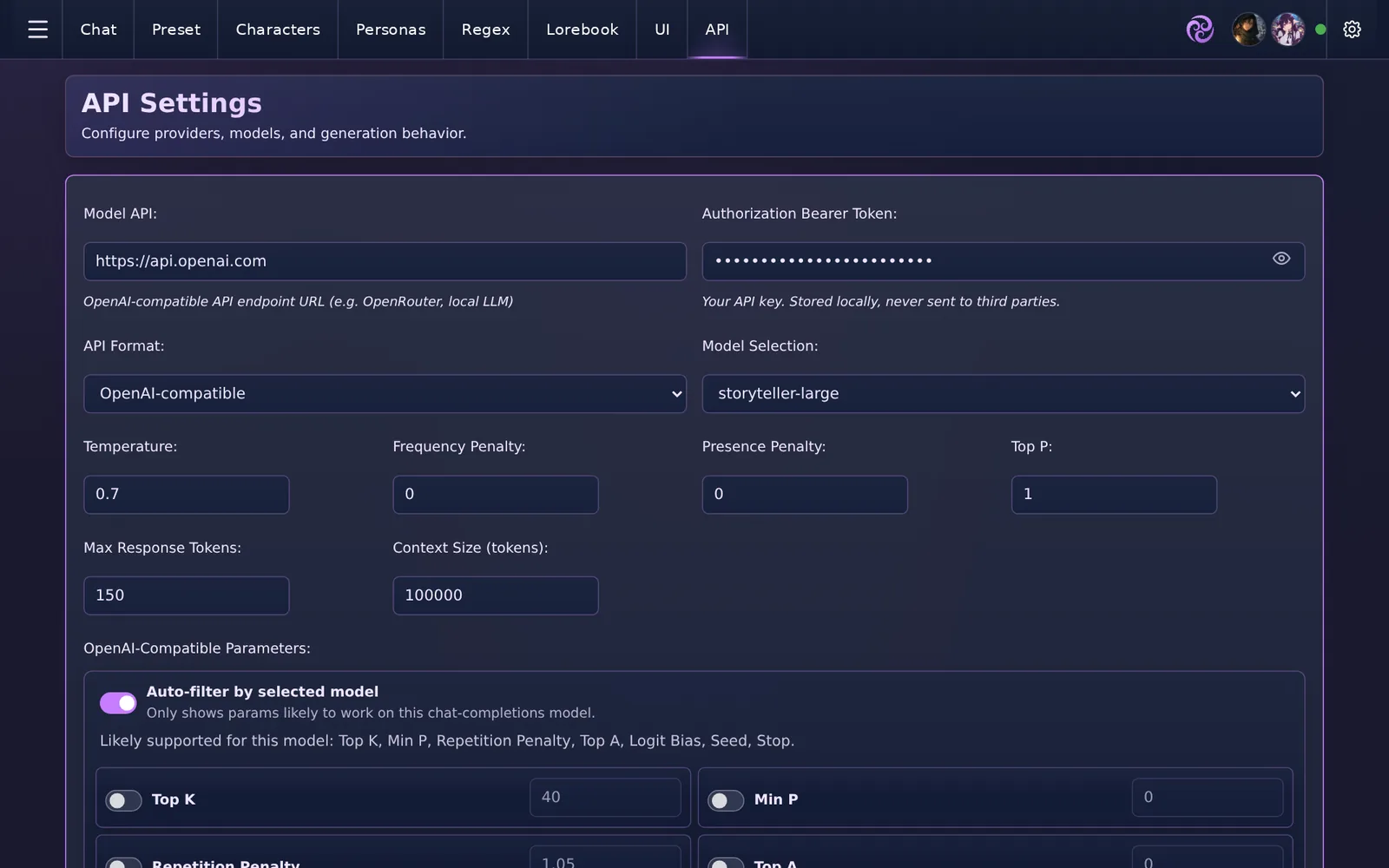
- Open the API tab.
- Paste your provider's base URL into Model API (for example
https://api.openai.com) and your key into Authorization Bearer Token. The key stays hidden on screen; the eye button shows it. - Pick the message format under API Format: OpenAI-compatible, Claude (Anthropic) or Deepseek.
- Press Test API. A green notification means you are connected. Pick a model from the list that loads.
Your first chat
- Open the Characters tab and press + Add, or import a
.png/.charxcard you already have. Cards from SillyTavern and RisuAI work unchanged. - Give the character a name, a description and a first message. Everything else is optional.
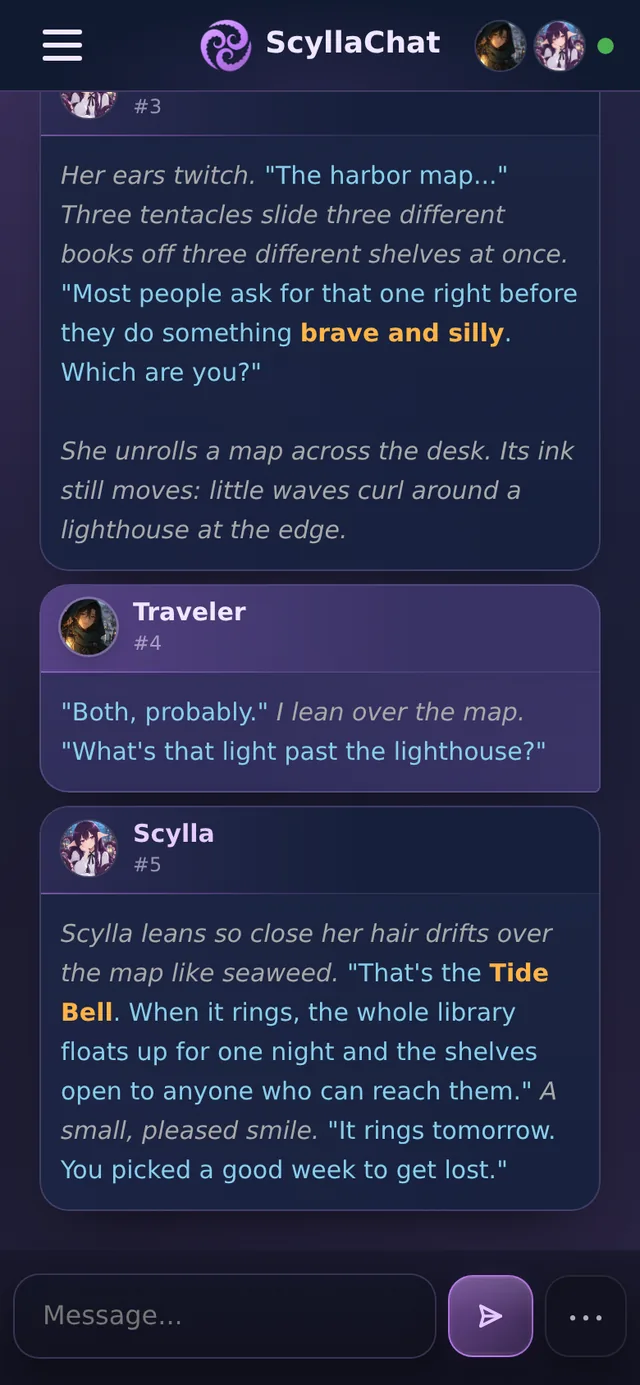
- Press the chat button on its card. The greeting is already waiting for you.
- Type a reply and send. Use the arrows on the reply to swipe between alternative versions, or generate a new one.
Where your data lives
Everything (characters, chats, lorebooks, settings) is plain JSON in a data/ folder owned by the app. See Backups & your data for the folder layout and how to keep it safe.